Débianiser mon MacBook Pro 13 (intel) (MacBookPro 14,2)
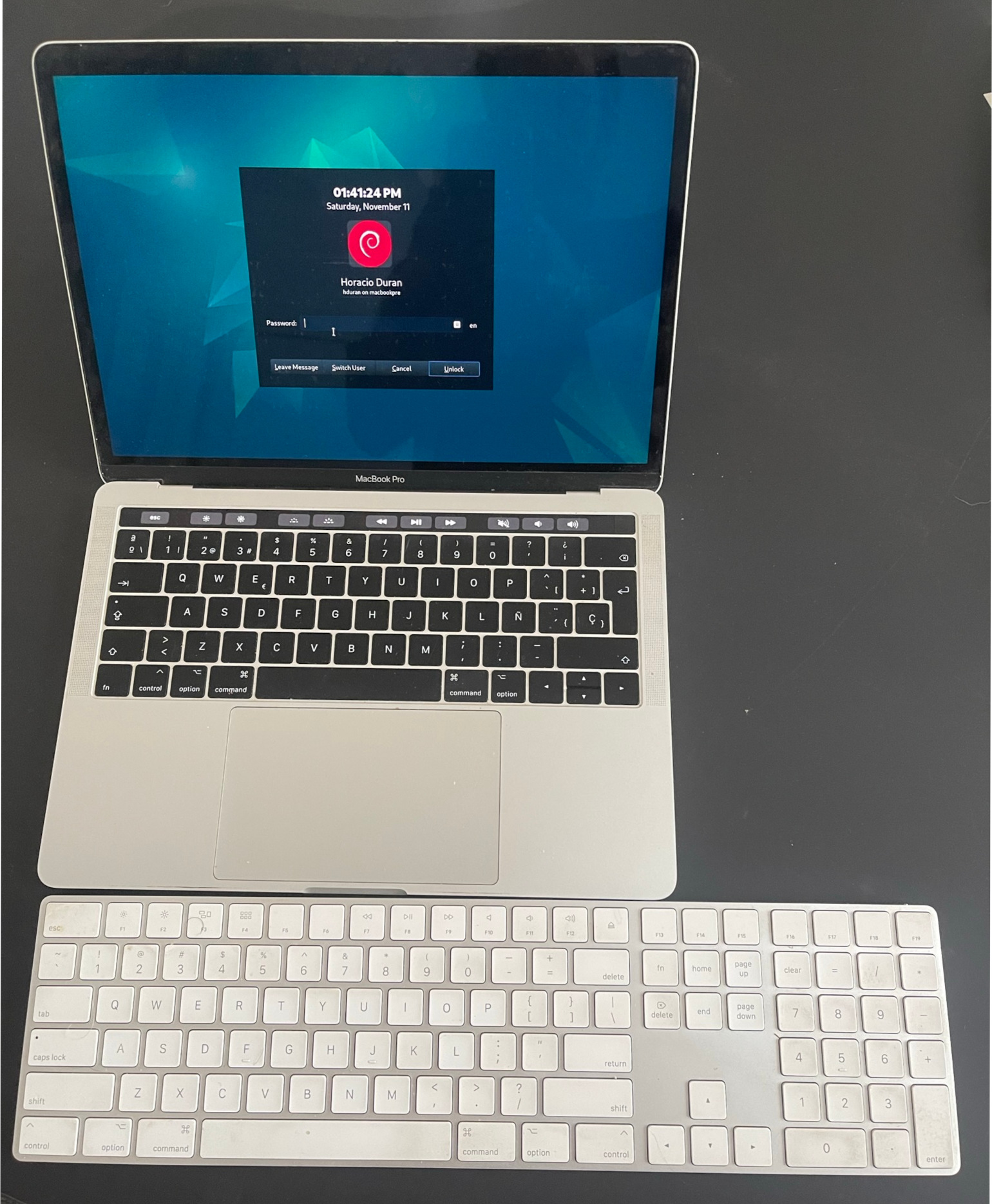
Macbook Pro with the keyboard I actually use it with
Pourquoi ?
Cela fait un moment que je voulais avoir un ordinateur portable sous linux. Comme je travaille quotidiennement sur macOS, mon seul ordinateur sous linux est un poste fixe.
J’essaie de ne pas passer plus de temps que mes heures de travail à mon bureau afin de préserver la séparation travail/vie personnelle.
Il se trouve que nous avions un vieux Macbook Pro, un modèle de 2016 avec un processeur i5 et 8G de ram.
Cette machine était épouvantable sous macOS, à peine utilisable.
Comme personne ne va l’acheter, j’ai décidé d’expérimenter en y installant du linux.
J’ai choisi debian comme système d’exploitation parce que mon Linux préféré était autrefois Ubuntu, mais je ne supporte pas les snaps.
Comment ?
Conseils importants
- N’utilisez pas de mac relativement récents, ils ne sont pas exempts de problèmes et constituent un matériel décidément sous-optimal pour autre chose que macOS.
- Si vous avez une touchbar, préparez-vous à compiler des modules du kernel.
- Vous aurez besoin de quelques connaissances de systemd et des daemons unix.
- Ne supprimez pas votre macOS ; redimensionnez la partition à 50G (une installation fraîche aide ici) pour pouvoir mettre à jour le firmware (et vous avez besoin de la partition EFI pour héberger l’OS de la touchbar, oui, elle fait tourner un OS complet).
- Cela fonctionne « à peu près » chez moi avec le kernel 6.1.0.x (debian 12 au moment de l’écriture) mais pas avec 6.5.x.x (debian trixie alors en testing). J’ai patché le module de la touchbar pour qu’il fonctionne avec le nouveau kernel, mais il semble y avoir autre chose d’incompatible. À ce stade, je ne suis pas sûr que cela vaille la peine d’essayer de porter ceci vers un kernel plus récent, étant donné que ce matériel n’est plus produit.
Installation
- Redimensionnez votre partition macOS (potentiellement APFS) ; pour cela, vous devrez utiliser le terminal sur l’écran de Recovery (maintenez Cmd+R au démarrage) et utiliser la commande
diskutil, c’est facile une fois que vous avez lu la documentation et compris l’agencement de vos partitions. - Installez votre Debian (utilisez-en une récente, pour les drivers) sur l’espace vide disponible.
La faire fonctionner
Je n’ai pas testé ce script, mais je l’ai écrit à partir de mon historique bash ; rien de tout cela n’est une production originale de ma part, c’est surtout du googling et le fait de discerner ce qui est obsolète.
#!/bin/bash

## This assumes debian ~12, worked for me in a Macbook 2017 with touch bar I.
## According to apple it is [this](https://support.apple.com/kb/SP755?viewlocale=en_US&locale=en_US) machine, the docs about installing a linux on it use the **MacBookPro14,2** nomenclature.
#
# This requires root for most things (or sudo but who has time for that)
# Some of the sources for this are:
#
## * The repos themselves from which this script clones
## * https://github.com/Dunedan/mbp-2016-linux
## * https://github.com/roadrunner2/macbook12-spi-driver # previous fork of tb driver
## * https://easylinuxtipsproject.blogspot.com/p/root-command-startup.html

## dependencies
apt install build-essential curl wget git dkms

## soundcard
git clone https://github.com/davidjo/snd_hda_macbookpro.git /usr/src/snd_hda_macbookpro
pushd /usr/src/snd_hda_macbookpro
./install.cirrus.driver.sh
popd

## touchbar, this is not the og repo but the one arch linux uses for pacman so its up to date.
git clone https://github.com/marc-git/macbook12-spi-driver.git /usr/src/applespi-0.1
dkms install -m applespi -v 0.1
# yes, i know, this is insecure, i actually downloaded the thing and read it myself
# but this is for the sake of brevity, you are running this script anyway.
curl https://wiki.t2linux.org/tools/touchbar.sh | sh

## And now, lets configure the correction for the bazillion issues mac has
#
## This magical incantation is required by the broadcom nic to work
## why? nobody knows for certain, it just works.
## I tried setting it to other tx powers, this seems to be ideal.

cat << EOF | tee /opt/captain.sh > /dev/null
#!/bin/bash
# This disables d3cold on nvme, otherwise your machine will never return from suspension
echo 0 > /sys/bus/pci/devices/0000\:01\:00.0/d3cold_allowed
# This does the wifi resurrection thing
sleep 20
iwconfig wlp2s0 txpower 5
exit 0
EOF

## Notice that you need to run this after all sorts of sleep or wifi and bt do not work
## I have no clue how bluetooth is also affected likely all in the same chip and needs a kick
cat << EOF | tee /etc/systemd/system/captain.service > /dev/null
[Unit]
Description=Captain service
After=network.target suspend.target hibernate.target hybrid-sleep.target suspend-then-hibernate.target

[Service]
ExecStart=/home/hduran/fixes/captain.sh

[Install]
WantedBy=multi-user.target
EOF

systemctl captain start
systemctl enable captain.service

## This is required to kickstart the touchbar, which is useful if you want
# Esc and F# keys :p or any form of multimedia controls.
cat << EOF | tee /etc/systemd/system/macbook-quirks.service
[Unit]
Description=Re-enable MacBook 14,3 TouchBar
Before=display-manager.service
After=usbmuxd.service

[Service]
Type=oneshot
ExecStart=/bin/sh -c "echo '1-3' > /sys/bus/usb/drivers/usb/unbind"
ExecStart=/bin/sh -c "echo '1-3' > /sys/bus/usb/drivers/usb/bind"
RemainAfterExit=yes
TimeoutSec=0

[Install]
WantedBy=multi-user.target
EOF

systemctl macbook-quirks start
systemctl enable macbook-quirks start