Debianizando mi MacBook Pro 13 (intel) (MacBookPro 14,2)
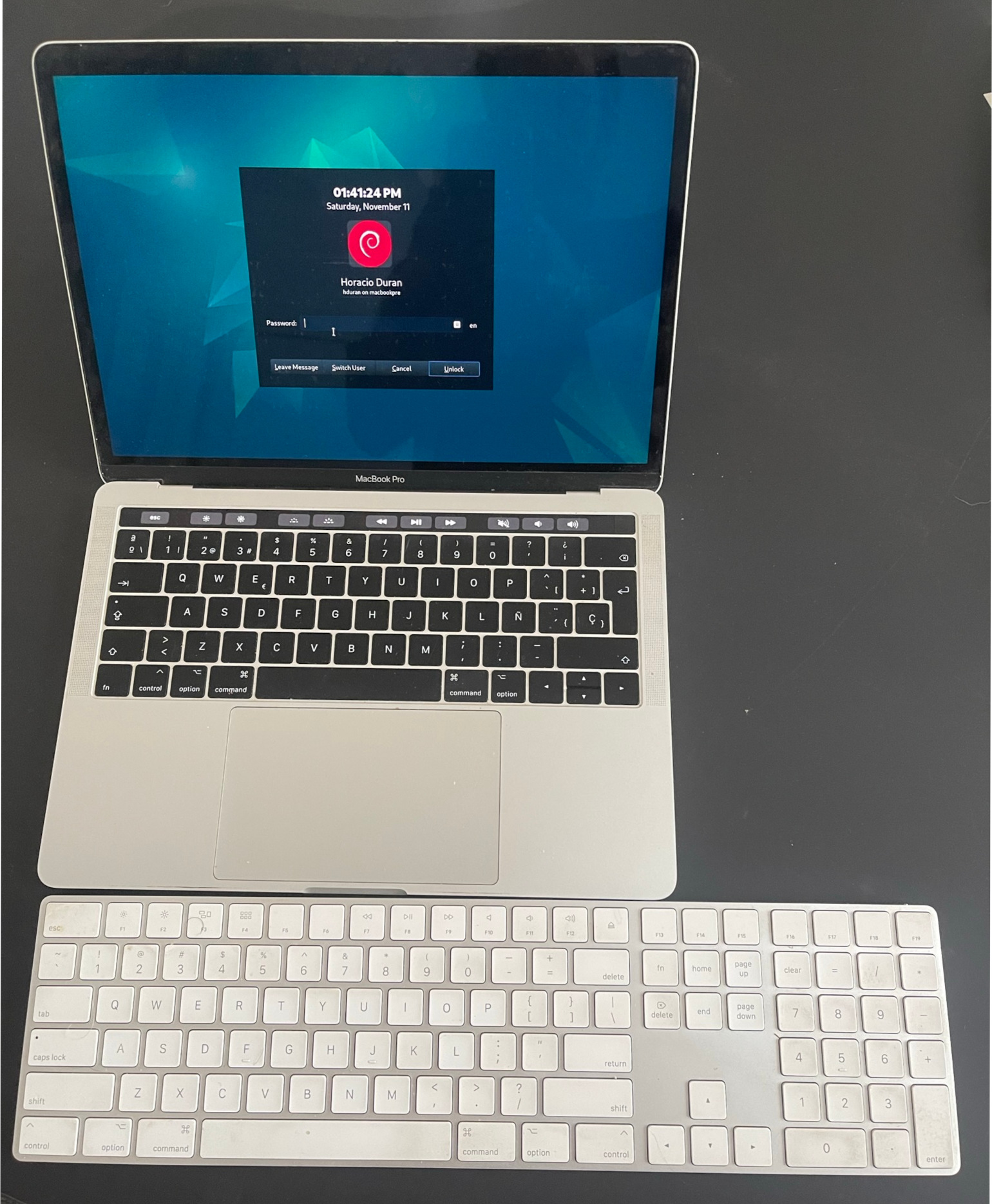
Macbook Pro with the keyboard I actually use it with
¿Por qué?
Hace tiempo que quería tener una laptop con linux. Como trabajo a diario en macOS, mi única computadora con linux es una de escritorio.
Trato de no pasar más tiempo que mi horario laboral en el escritorio para mantener la separación trabajo/vida.
Resulta que teníamos una vieja Macbook Pro, un modelo 2016 con un procesador i5 y 8G de ram.
Esta máquina era terrible en macOS, apenas se podía usar.
Como nadie la va a comprar, decidí experimentar poniéndole algo de linux.
Elegí debian como sistema operativo porque mi Linux favorito solía ser Ubuntu, pero no soporto los snaps.
¿Cómo?
Consejos importantes
- No uses macs relativamente modernas, no están exentas de problemas y son definitivamente hardware subóptimo para cualquier cosa que no sea macOS.
- Si tenés una touchbar, preparate para compilar módulos del kernel.
- Vas a necesitar algo de conocimiento de systemd y de daemons de unix.
- No borres tu macOS; redimensioná la partición a 50G (una instalación limpia ayuda acá) para poder actualizar el firmware (y necesitás la partición EFI para alojar el SO de la touchbar, sí, corre un SO completo).
- Esto funciona “más o menos” para mí con el kernel 6.1.0.x (debian 12 al momento de escribir esto) pero no con 6.5.x.x (debian trixie mientras estaba en testing). Parchée el módulo de la touchbar para que funcione con el nuevo kernel, pero parece haber alguna otra cosa incompatible. A esta altura no estoy seguro de si vale la pena intentar portar esto a un kernel más nuevo, dado que este hardware ya no se produce.
Instalación
- Redimensioná tu partición de macOS (posiblemente APFS); para esto vas a necesitar usar la terminal en la pantalla de Recovery (mantené Cmd+R al bootear) y usar el comando
diskutil, es fácil una vez que leés la documentación y entendés el layout de tus particiones. - Instalá tu Debian (usá una moderna, por los drivers) en el espacio vacío disponible.
Haciéndola funcionar
No probé este script, pero lo escribí a partir de mi historial de bash; nada de esto es producción original mía, es en su mayoría googlear y discernir qué está desactualizado.
#!/bin/bash

## This assumes debian ~12, worked for me in a Macbook 2017 with touch bar I.
## According to apple it is [this](https://support.apple.com/kb/SP755?viewlocale=en_US&locale=en_US) machine, the docs about installing a linux on it use the **MacBookPro14,2** nomenclature.
#
# This requires root for most things (or sudo but who has time for that)
# Some of the sources for this are:
#
## * The repos themselves from which this script clones
## * https://github.com/Dunedan/mbp-2016-linux
## * https://github.com/roadrunner2/macbook12-spi-driver # previous fork of tb driver
## * https://easylinuxtipsproject.blogspot.com/p/root-command-startup.html

## dependencies
apt install build-essential curl wget git dkms

## soundcard
git clone https://github.com/davidjo/snd_hda_macbookpro.git /usr/src/snd_hda_macbookpro
pushd /usr/src/snd_hda_macbookpro
./install.cirrus.driver.sh
popd

## touchbar, this is not the og repo but the one arch linux uses for pacman so its up to date.
git clone https://github.com/marc-git/macbook12-spi-driver.git /usr/src/applespi-0.1
dkms install -m applespi -v 0.1
# yes, i know, this is insecure, i actually downloaded the thing and read it myself
# but this is for the sake of brevity, you are running this script anyway.
curl https://wiki.t2linux.org/tools/touchbar.sh | sh

## And now, lets configure the correction for the bazillion issues mac has
#
## This magical incantation is required by the broadcom nic to work
## why? nobody knows for certain, it just works.
## I tried setting it to other tx powers, this seems to be ideal.

cat << EOF | tee /opt/captain.sh > /dev/null
#!/bin/bash
# This disables d3cold on nvme, otherwise your machine will never return from suspension
echo 0 > /sys/bus/pci/devices/0000\:01\:00.0/d3cold_allowed
# This does the wifi resurrection thing
sleep 20
iwconfig wlp2s0 txpower 5
exit 0
EOF

## Notice that you need to run this after all sorts of sleep or wifi and bt do not work
## I have no clue how bluetooth is also affected likely all in the same chip and needs a kick
cat << EOF | tee /etc/systemd/system/captain.service > /dev/null
[Unit]
Description=Captain service
After=network.target suspend.target hibernate.target hybrid-sleep.target suspend-then-hibernate.target

[Service]
ExecStart=/home/hduran/fixes/captain.sh

[Install]
WantedBy=multi-user.target
EOF

systemctl captain start
systemctl enable captain.service

## This is required to kickstart the touchbar, which is useful if you want
# Esc and F# keys :p or any form of multimedia controls.
cat << EOF | tee /etc/systemd/system/macbook-quirks.service
[Unit]
Description=Re-enable MacBook 14,3 TouchBar
Before=display-manager.service
After=usbmuxd.service

[Service]
Type=oneshot
ExecStart=/bin/sh -c "echo '1-3' > /sys/bus/usb/drivers/usb/unbind"
ExecStart=/bin/sh -c "echo '1-3' > /sys/bus/usb/drivers/usb/bind"
RemainAfterExit=yes
TimeoutSec=0

[Install]
WantedBy=multi-user.target
EOF

systemctl macbook-quirks start
systemctl enable macbook-quirks start